minimax h3 image generator
Bring your imagination into focus.
01 / STUDIOText to image
Create your next image
Your next idea starts here
Write a prompt. Choose a frame. Make it yours.
02 / INSPIRATION
See where an idea can take you
Explore 16 official MiniMax H3 Image examples, with complete prompts and reference images where provided. Open a result, then bring its prompt and references into the studio to explore.
Embodied intelligence task diagram
Living room layout design
Game scene: mineral wasteland travelers
Infographic: understanding red pandas
Retro: cloud barber shop
Jet engine exploded view
Documentary: flamingos at dawn
Academic figure from a paper
Retro: pear dressing room
Game map to a 3D gameplay scene
Dunhuang flying apsaras space station
Film portrait in a wooden cabin
Game scene: epic desert gathering
Quadruped mecha CAD drawing
Cursor migration digital art
Source: MiniMax official examples. English prompts are translations of the Chinese originals; text within images is unchanged. These images were not generated on this website. View official source
Why Choose MiniMax H3 Image?
Give your ideas more room, texture, and direction. Explore high-resolution image creation with a written brief, or bring references to guide the details that matter.
Native 4K, ready for the details
Set H3 Image to 1K, 2K, or 4K to match your project. The 4K setting targets roughly 16 megapixels, including 4096 × 4096 for a square image. Give expansive landscapes, fine textures, and layered compositions the space they need.
Choose a frame first: the same area setting produces different dimensions for wide and vertical images. Open the original to inspect the final size.
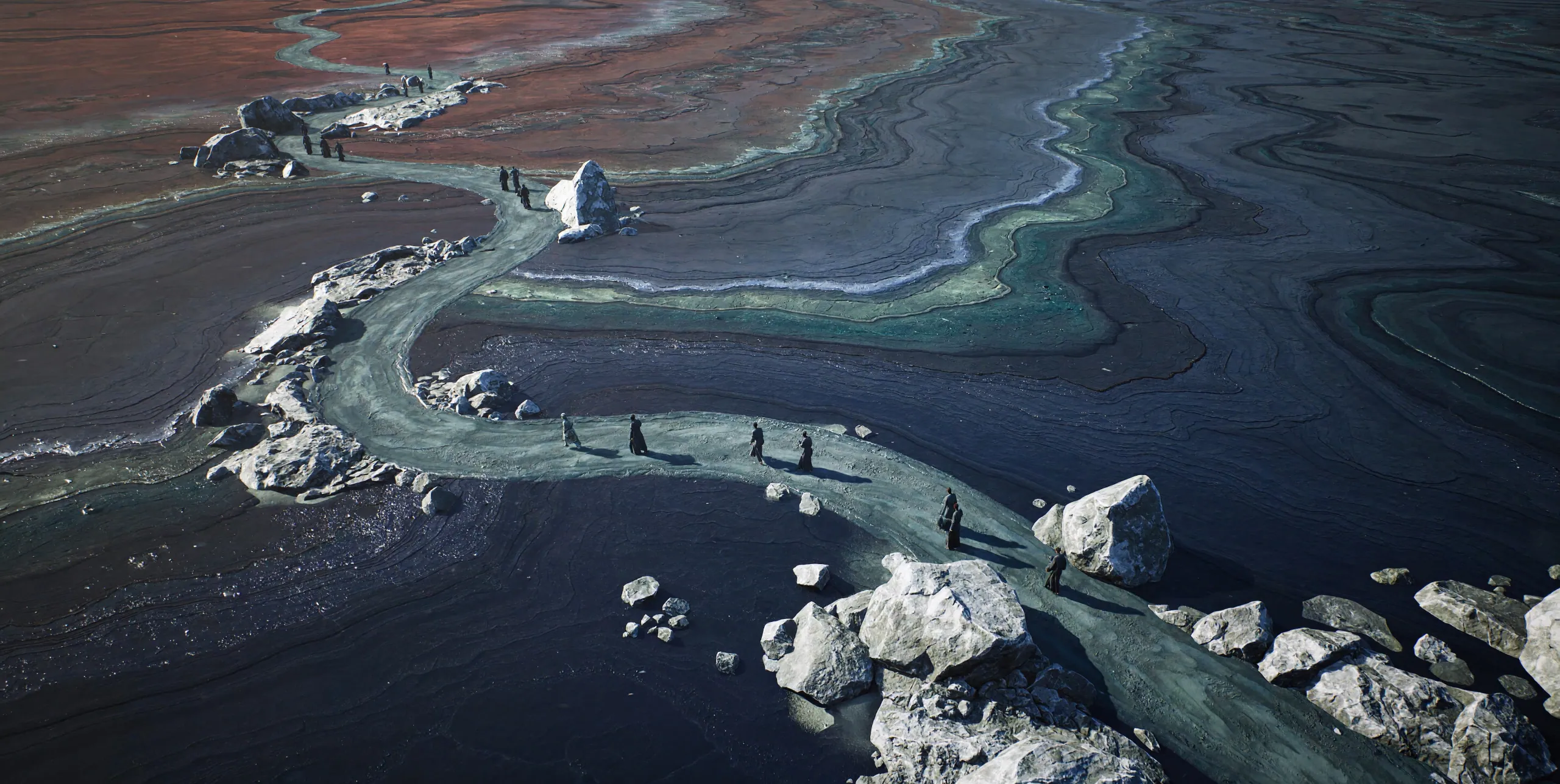
Materials you can see. Light you can feel.
Describe soft window light, the weave of a sweater, natural skin, or brushed metal. Use a focused brief to explore how materials and light work together. Review edges, lettering, and small features before placing a result in a finished design.

Tell it what to change. Show it what to keep.
Bring up to 16 reference images into the editor. Use one to anchor the subject, another for the setting, and others for visual direction. In your prompt, explain the role of each image and which details should remain unchanged.
For a room edit in MiniMax H3 Image, start with the empty space, add furniture references, and describe the lighting. Compare the result with the source layout and product shapes.
Input references
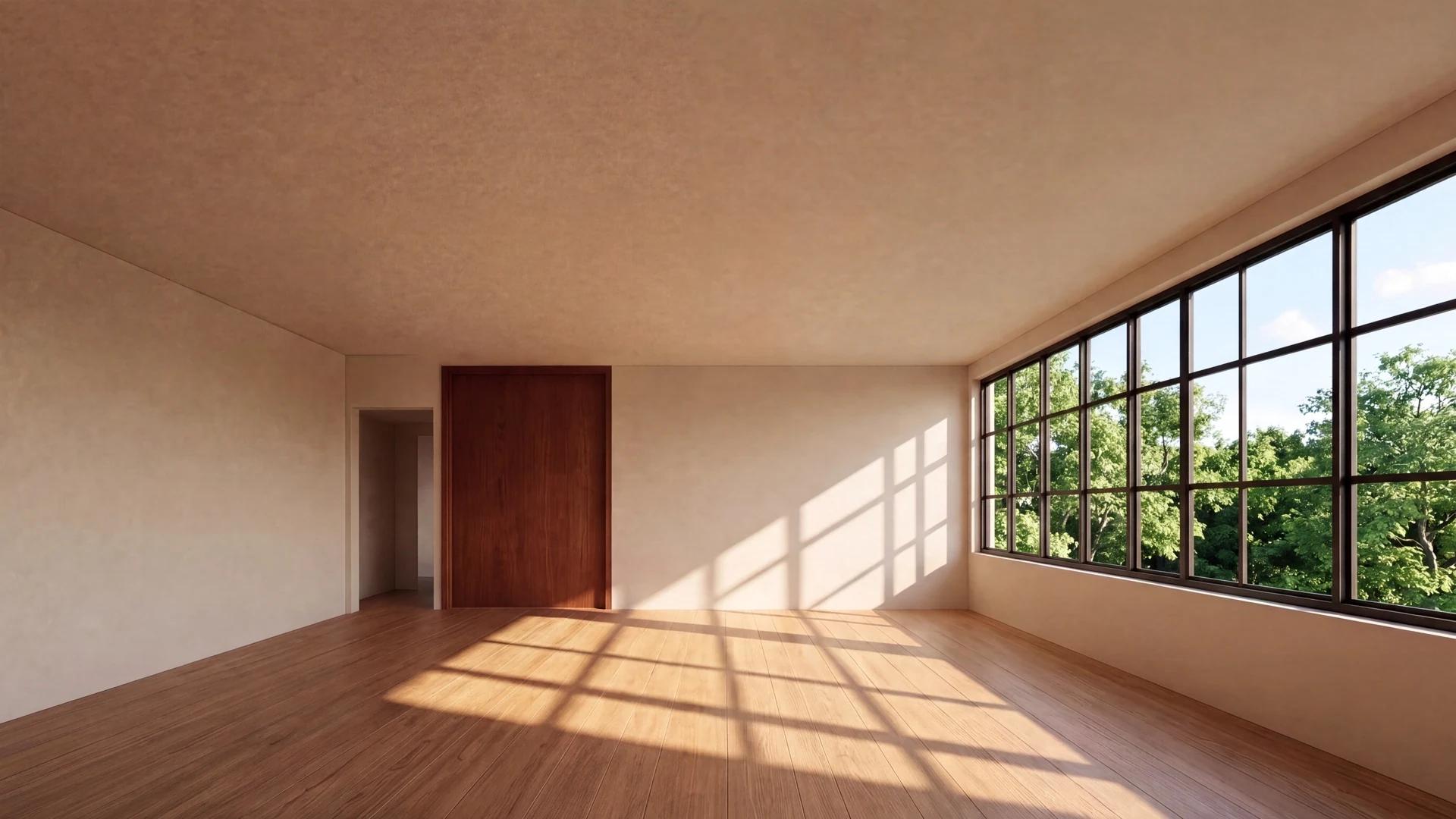
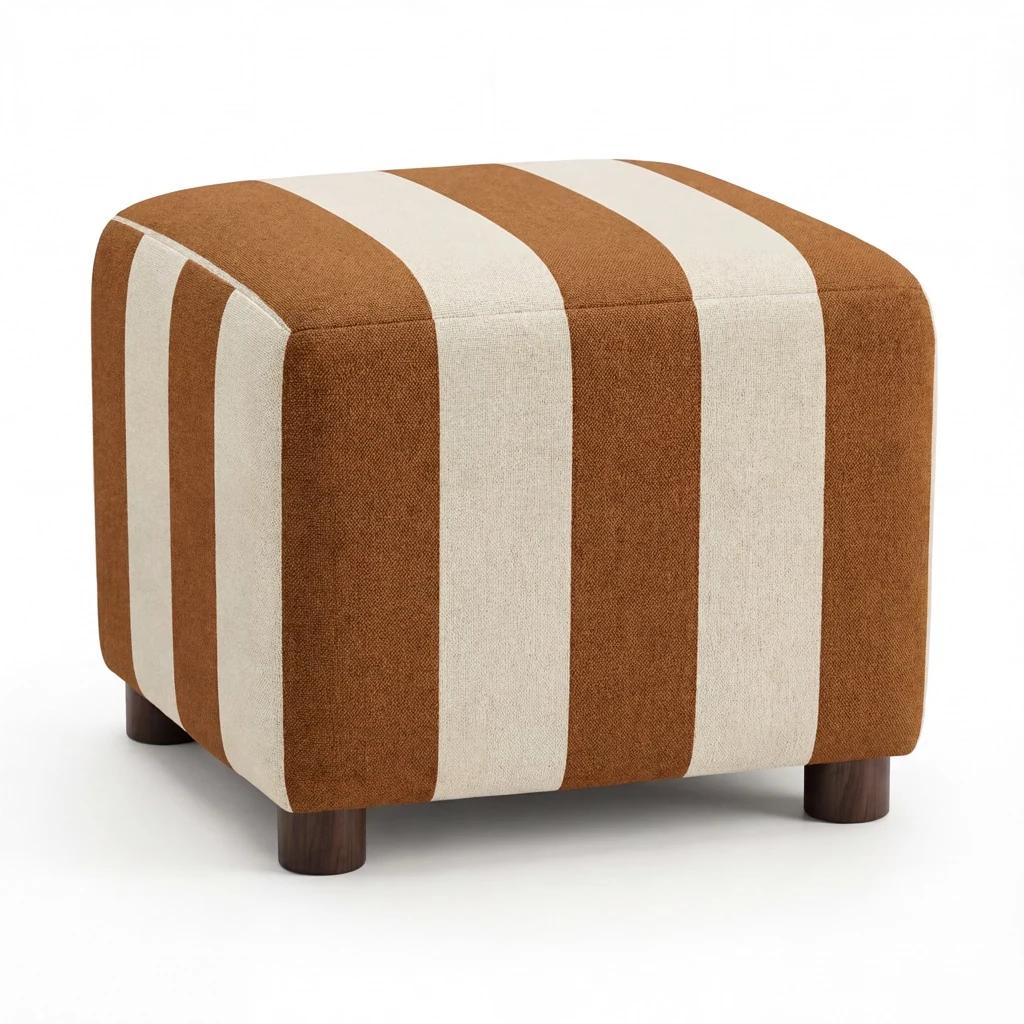

Edited result
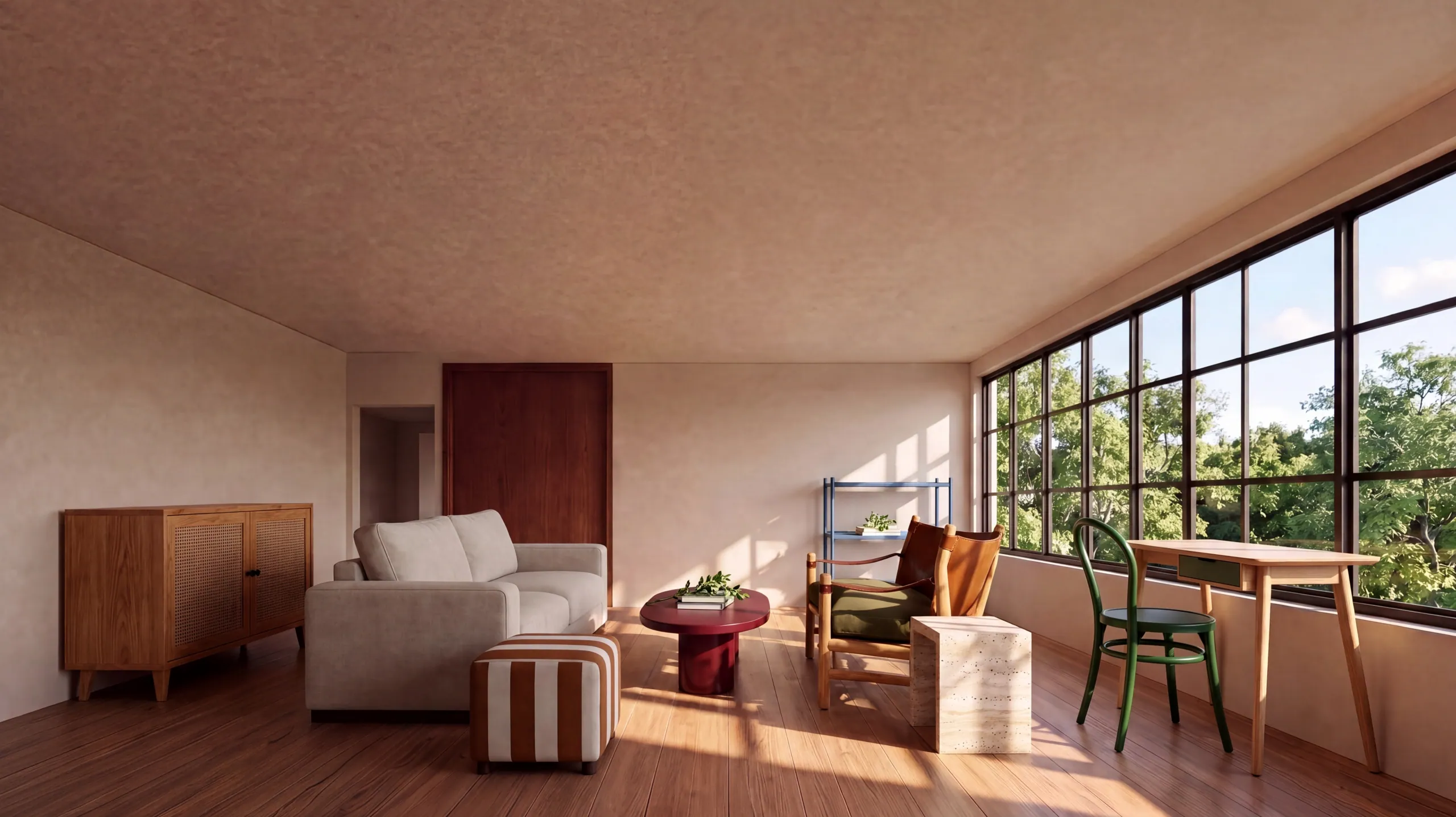
Illustrated with official MiniMax examples. These images were not generated on this website.
03 / CREATIVE CONTROL
Your words. Your frame. Your direction.
MiniMax H3 Image brings the essential choices into one focused studio. Set the visual direction in words, then choose the output settings that suit the image you want to make.
Two H3 Image models, one workflow
Choose the standard image model or Highspeed without rebuilding your brief. Both share the same prompt, resolution, and aspect ratio controls, so you can compare models from a consistent starting point.
Choose 1K, 2K, or 4K
Choose a MiniMax H3 Image resolution for an early draft or a detailed review. Consider the final placement before choosing a size, and inspect the original rather than relying only on a small preview.
A frame for every placement
Use H3 Image to frame a square product grid, a wide banner, or vertical mobile content. Choosing the ratio early helps you plan the subject, background, and space for your layout.
Refine the brief, then the image
MiniMax H3 Image supports text-to-image, edits with up to sixteen reference images, and standalone prompt enhancement. Review enhanced text before generating. Image edits always enhance again; text-only generation can reuse the enhanced prompt without repeating that step.
1K 2K 4K1:1 4:3 16:9 9:16
04 / MADE FOR YOUR IDEAS
From a first thought to a visual direction
Use MiniMax H3 Image to develop a campaign concept, an editorial story, or an imagined world. Each draft gives you a clearer starting point for the next creative decision.
Product concepts
Explore materials, surfaces, backgrounds, and lighting before a shoot. Keep the scene simple enough to evaluate the product silhouette and mood. Check packaging and branding against the real item before publication.
Posters & campaign visuals
For a MiniMax H3 campaign visual, plan a strong focal point and leave room for your headline. Test a restrained composition before adding detail. Review generated lettering and finish exact typography in your design tool when needed.
Portraits & editorial stories
Describe the moment, expression, viewpoint, and quality of light. A focused scene can tell a clearer story than disconnected details. Review faces, hands, and fine features at full size.
Illustration & imagined places
Develop a palette, atmosphere, and visual style for an illustration or environment. Reuse the same art direction across related prompts, then compare results together to decide which images belong in the same collection.
How to Use MiniMax H3 Image
Turn a written idea or reference images into a new picture in three simple steps.
- Step 1
Write a prompt or add references
Describe your subject, setting, and style. To edit an image, choose Image edit and upload references. Explain what to change and which details to keep.
- Step 2
Choose settings and generate
Select a model, resolution, and aspect ratio. Sign in with a verified account, review the credit cost, and generate when the service is available.
- Step 3
Preview, refine, and download
Inspect the original image, then download it. Refine your prompt to explore another version. Successful results stay in My Creations so you can return to them.
06 / PROMPT GUIDE
Give your prompt a clear point of view
A useful MiniMax H3 Image prompt reads like a focused creative brief. Explain what matters, keep the instructions compatible, and refine the result one decision at a time.
Start with the essentials
Prioritize the subject, setting, and light. Add material or texture only when it helps explain the image you want.
Make room for the layout
Specify the viewpoint and where you need negative space. Check the final crop in the actual banner, page, or social placement.
Change one thing at a time
Adjust the lighting, framing, or background individually. Comparing focused variations makes it easier to understand which instruction improved the direction.
07 / GOOD TO KNOW
MiniMax H3 Image questions, answered
Which image models can I use?
The studio supports MiniMax-H3-Image and MiniMax-H3-Image-Highspeed through the official MiniMax API. This is an independent website, not the official MiniMax service.
What image settings are available?
H3 Image offers 1K, 2K, or 4K and four aspect ratios. Each generation returns one JPEG. Upload references or enhance prompts separately; enhancement supports only the standard model.
How long does generation take?
A request can take up to ten minutes. If the outcome is uncertain after a timeout, check your MiniMax usage before submitting again; the original request may still finish and incur a charge.
Where can I find and save my images?
Successful generations are saved to My Creations when history storage is available. Provider links may expire, so download the original promptly. If saving history fails, keep the displayed result instead of regenerating it.
What should I know about cost and commercial use?
This website charges the credits shown before you submit. Your API costs are included in those credits. Commercial use depends on the applicable model terms and your rights to the inputs; review the image before publishing.
THE IMAGE JOURNAL
A little direction for your next creation
Explore MiniMax H3 Image guides to writing prompts, editing with references, and choosing the right output for your project.
- Prompt guide
H3 Image Prompt Guide: Start with a Clearer Brief
An image prompt guide for MiniMax H3 Image: turn a loose idea into a focused brief, from the subject and light to the final composition.
- Editing workflow
Reference Image Editing: Keep Your Brief in Focus
Plan reference image editing in H3 Image with a clear role for each source, precise change instructions, and a practical result review.
- Output guide
Image Resolution and Aspect Ratio: Choose Your Frame
Choose image resolution and aspect ratio for MiniMax H3 projects, from wide banners and portraits to product concepts and detailed layouts.
Give your next idea a frame
Bring a clear brief to MiniMax H3 Image and start shaping your next visual direction.
Back to MiniMax H3 ImagePLANS & CREDITS
One balance. Every creative direction.
Choose a MiniMax H3 Image plan for regular creation, or buy a one-time pack when you need extra room. This website’s credit balance will also support video models as they become available.
Start with 9 free credits
One verified account, one trial. Enough for 3 standard 2K text-to-image generations with prompts up to 2,000 characters. Trial credits expire 7 days after issue; no card required.
Starter
A focused space for occasional campaigns and personal projects.
$29.90 / month
Billed monthly. Cancel renewal anytime.
400 credits each month
Up to 133 standard 2K images
- Commercial license not included
- Standard and Highspeed image models
- Text-to-image, reference editing and prompt enhancement
- Same output settings on every plan
- My Creations and original downloads
- Top up without changing your subscription
Pro
Most popularMore room to explore, refine, and publish regularly.
$39.90 / month
Billed monthly. Cancel renewal anytime.
900 credits each month
Up to 300 standard 2K images
- Commercial use license
- Standard and Highspeed image models
- Text-to-image, reference editing and prompt enhancement
- Same output settings on every plan
- My Creations and original downloads
- Top up without changing your subscription
Studio
A larger allowance for frequent production and client projects.
$69.90 / month
Billed monthly. Cancel renewal anytime.
2500 credits each month
Up to 833 standard 2K images
- Commercial use license
- Standard and Highspeed image models
- Text-to-image, reference editing and prompt enhancement
- Same output settings on every plan
- My Creations and original downloads
- Top up without changing your subscription
Monthly credits are valid for 30 days and do not roll over. Annual plans are paid upfront with monthly credit releases, not one annual lump sum. Plan changes are managed in billing; extra credits are not promised for an immediate upgrade.
Commercial use on Pro and Studio is subject to the applicable model terms and your rights to uploaded materials.
Credit top-ups
One-time purchase. No recurring charge, no subscription required. Purchased credits do not expire and remain available after a subscription ends.
Basic
$9.00
100 credits · no expiry
Up to 33 standard 2K images
Standard
$19.00
220 credits · no expiry
Up to 73 standard 2K images
Premium
$39.00
450 credits · no expiry
Up to 150 standard 2K images
Enterprise
$79.00
950 credits · no expiry
Up to 316 standard 2K images
Know the credit cost before you create
H3 Image uses the same model rates on every plan. The studio updates your total before you submit.
| Operation | 1K | 2K | 4K |
|---|---|---|---|
| Standard image | 3 credits | 3 credits | 9 credits |
| Highspeed image | 5 credits | 5 credits | 16 credits |
| Enhance prompt only | 2 credits | 2 credits | 2 credits |
Each reference image adds 2 credits for standard generation or standalone enhancement, or 3 credits for Highspeed. The first 2,000 prompt characters are included; each additional block of up to 2,000 characters adds 1 credit.
Image counts assume standard 2K text-to-image with a prompt of up to 2,000 characters. Editing, enhancement, larger outputs and other models use different amounts. These are this website’s retail credit rates, not MiniMax API token prices.
Ready for the next frame
Planned MiniMax H3 video generation would use this website’s credit balance, with charges based on model, resolution, output duration and reference media. Video is not available today; no launch date is promised.
Planned example: H3 2K, 5 seconds, no reference-video input: 80 credits. Final video rates will be confirmed before launch.
Your website, your balance
Accounts, purchases, credits and creations belong to this MiniMax H3 Image website. They do not transfer to or combine with Flux. All paid plans use the same model settings; allowances determine how much you can create.
Clear debit and refund rules
Credits are reserved before a request starts. Confirmed failures return the reservation. If a connection ends and the result is unknown, credits stay reserved while the attempt is reconciled. Do not submit again just because a request timed out.
Enhance once, then generate
Standalone enhancement returns text and has its own charge. Reusing that prompt for text-to-image can skip automatic enhancement; the image still uses its listed generation credits. Image edits always enhance again. Changing the prompt turns automatic enhancement back on.
Keep the original
Download your files promptly because provider-hosted links may expire. Review images and confirm the rights to uploaded references and generated content before commercial use. Canceling a subscription stops future renewals; it does not automatically refund past charges.